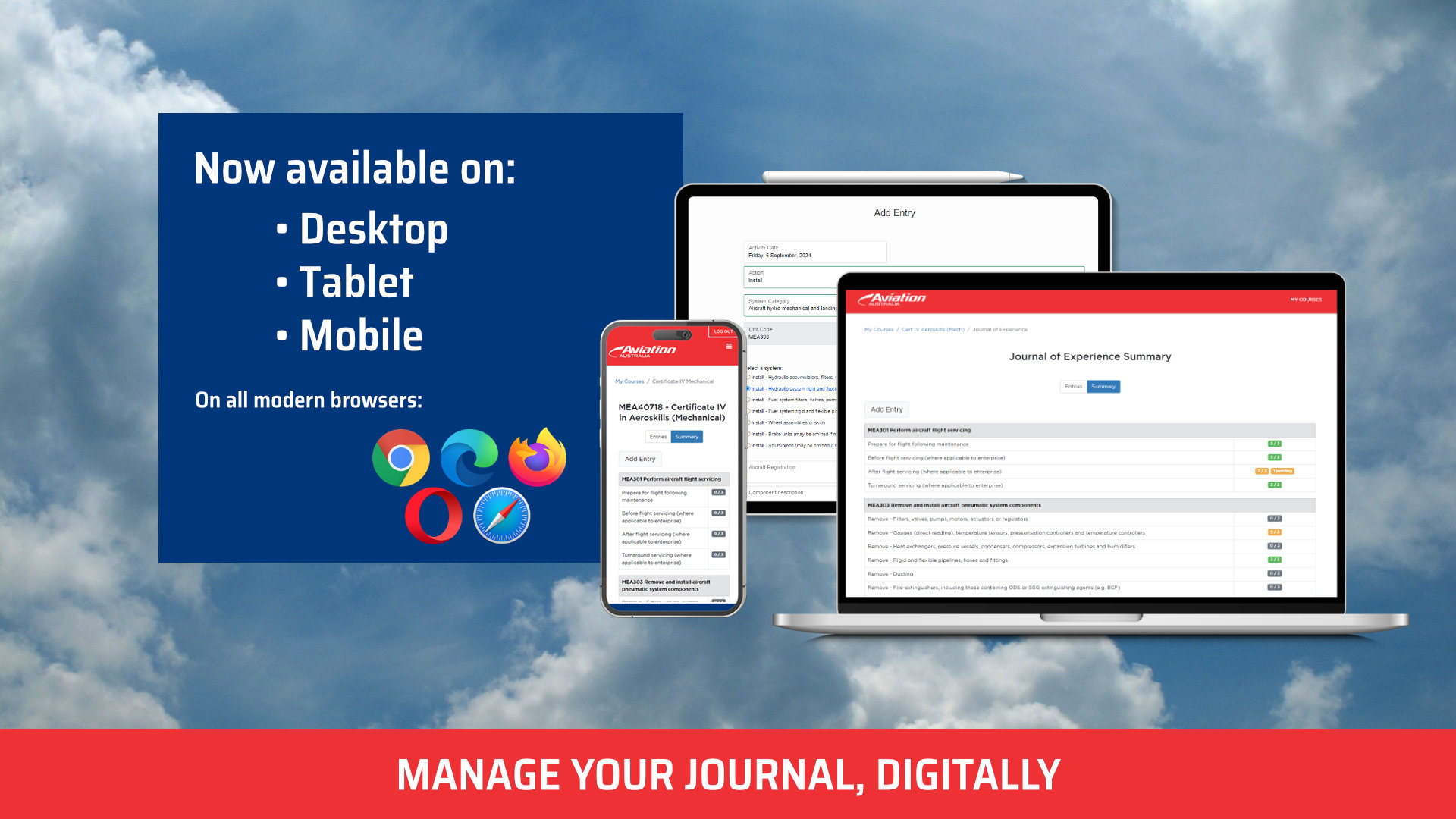
This page is designed to let apprentices, employers and supervisors know what’s new with the eJournal. This includes new features, updates and patches made to help improve the user experience.
Page contents:
For information and FAQs please visit the eJournal portal page.
November 2025
You can now:
For a quick how-to guide on how to use these features, please check out the release notes at the bottom of this page.

At the moment supervisors are sent notifications on each entry. It would be beneficial for a summary email to be sent out at the end of the day.
For those supervisors with a large number of apprentices, it is advised that you create a rule in your inbox that moves the notifications to an apprentice folder, and check it as frequently as you are able to.
Please remember that as a supervisor, you can always log in to the platform here. Using your email address that you are notified with.
If you have never logged in, you can use ‘Reset Password’ to setup your password for the first time. Please feel free to bookmark this page, so that it is easy to find.
IMPORTANT: If you use your login, you can now make use of the stored signatures feature to streamline the signature process. Please read more about this in the release notes on this page.
Applies to: Apprentices
This was the most requested feature from our apprentices using the eJournal! If you are only part way through an entry, you can now save the draft and resume it at a future point in time.
This is great for some of those larger entries that might span longer periods of time, or if you run out of time and just want to jot some points down.
You can also:
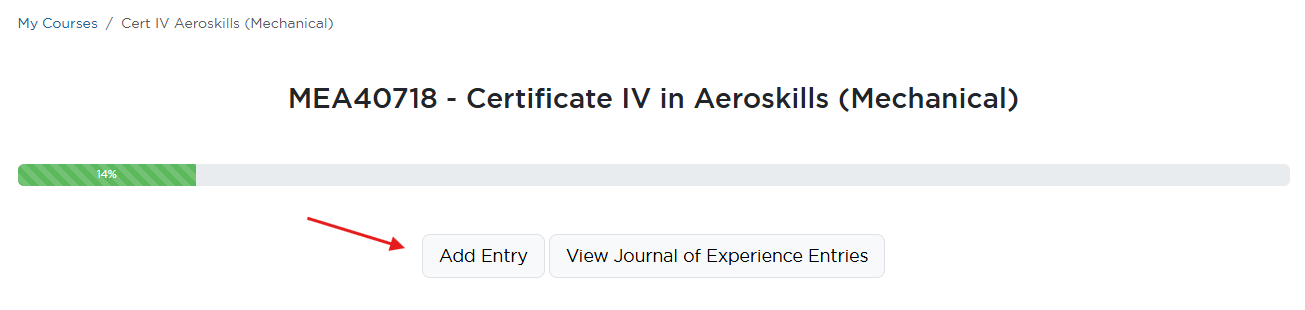
1. On your My Courses page, add an entry as you typically would.

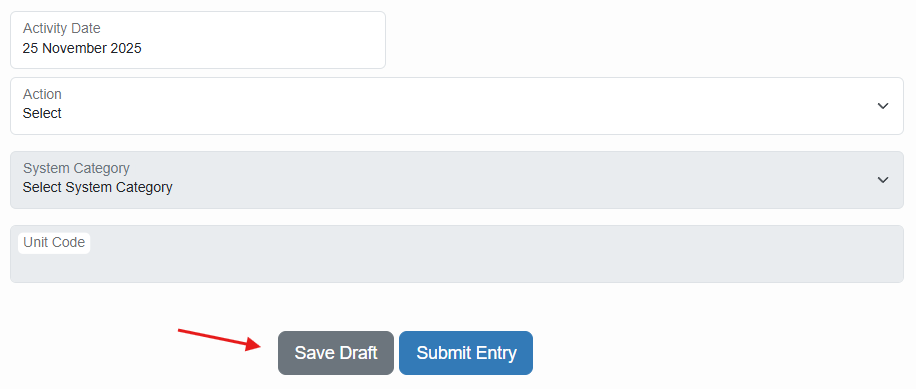
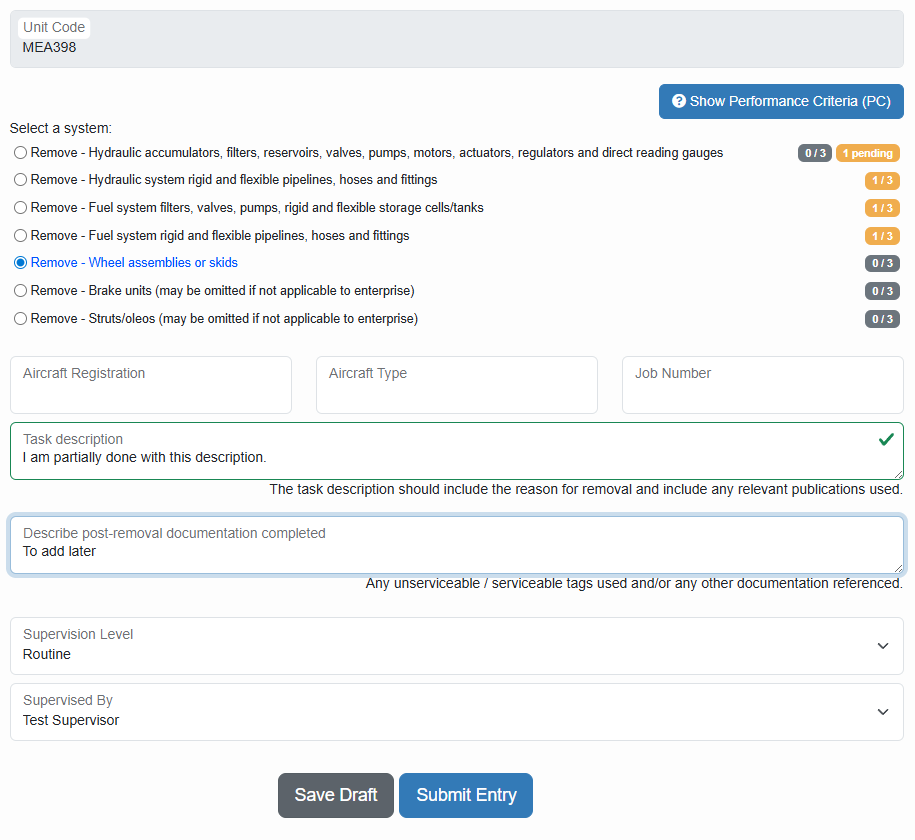
2. You will now see two options:’Save Draft’ and ‘Submit Entry’

3. Use the dropdowns and start making a journal entry. Except now, when you are not finished, you can hit ‘Save Draft’. This will not leave the entry, so you can continue in the future. But you can safely close the page down and it will be in your draft entries area.

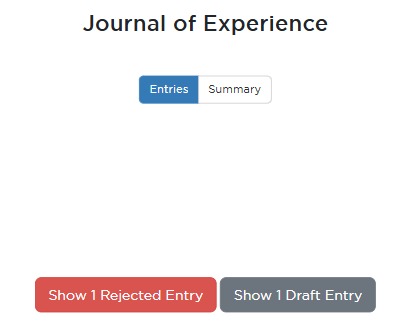
4. To view your draft entries, you can visit your Journal of Experience page. If you have any draft entries, you will see a button on the top of your page.

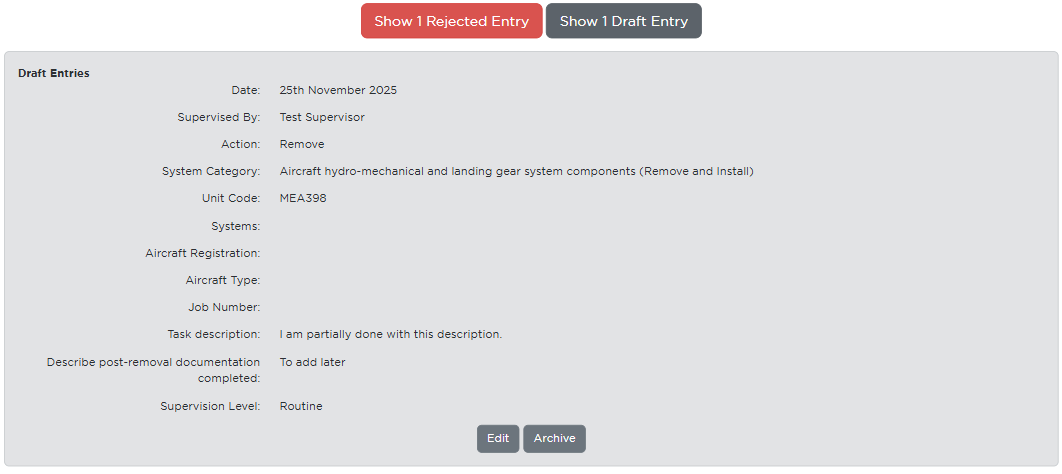
5. Using ‘Show X Draft Entries’, you will see your entries listed out.

Please note that it is not recommended to let these build up. Please try and finish the entry and submit it to your supervisor as soon as you are able to.
Thank you and we hope you enjoy this feature!
Applies to: Supervisors
This new feature lets you save your signature to your company account to streamline the signing process for your apprentices.
IMPORTANT: To use this feature, you need to sign-in to the platform. This is important for complying with digital signature standards. If you action signatures via email, there will be no option to save or used a saved signature.
The following steps will take you through this:
Step 1: Open the eJournal application here. Using your email that you get notifications with, you can sign in. If you have never signed in, please use the ‘Reset Password’ function.
Step 2: Once signed in, you will see an orange notification banner at the top of your screen. If you are already signed in, go to ‘My Courses’ in the top right of your screen.

This will take you to your apprentice signature area. But now you are signed in.
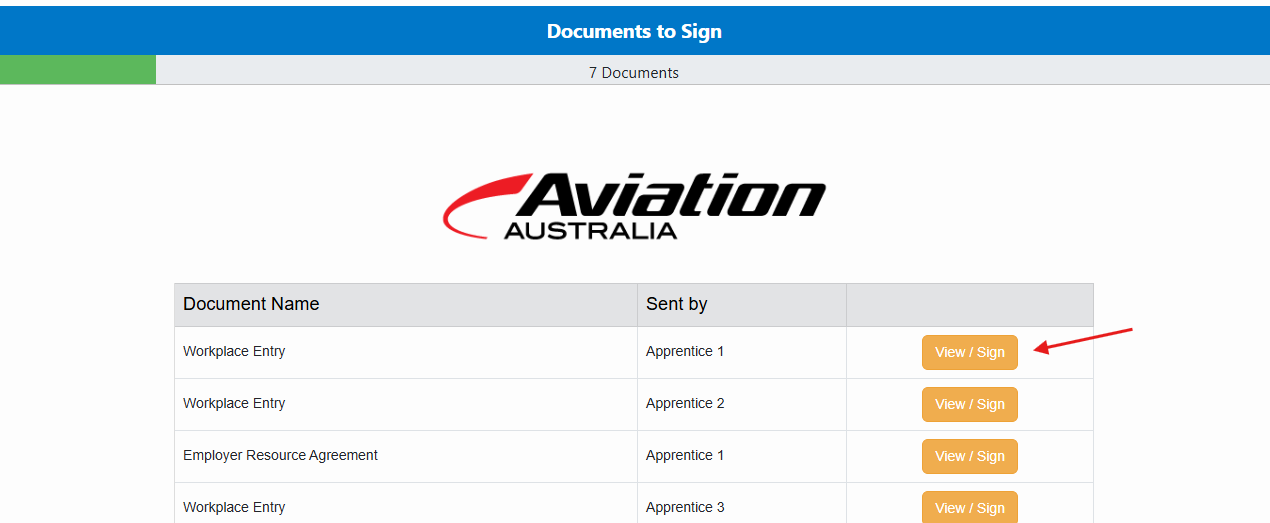
Step 3: When you View / Sign an entry, you will will notice that your name will automatically populate and you will see:
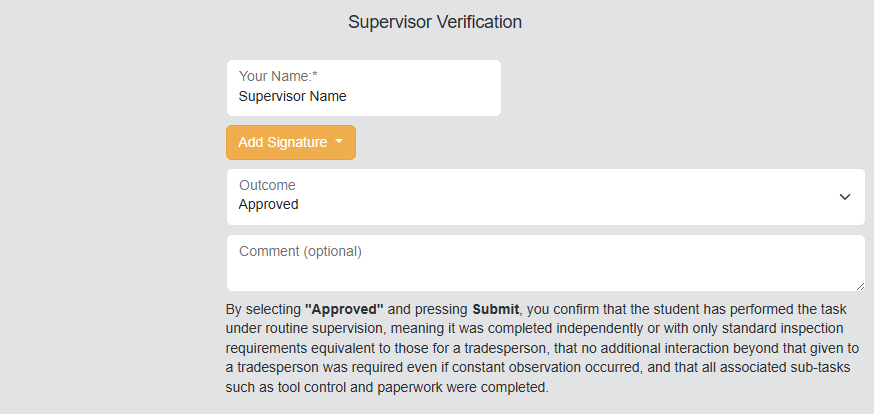
If you have not yet added a signature, you can do so. Be sure to check “Update signature on profile?”
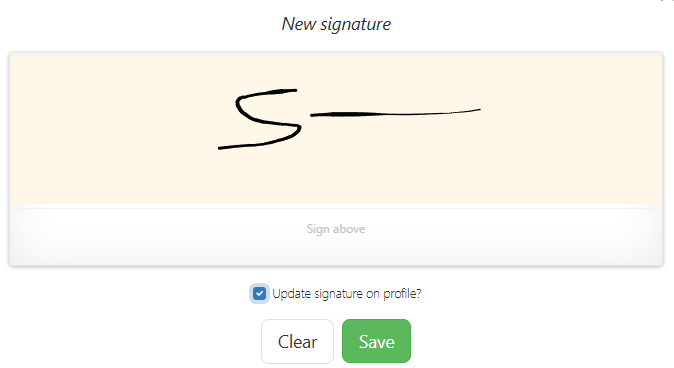
So that next time you sign, you can select ‘Use saved signature’.
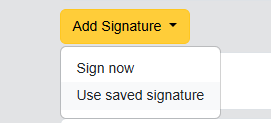
This will use your saved signature.
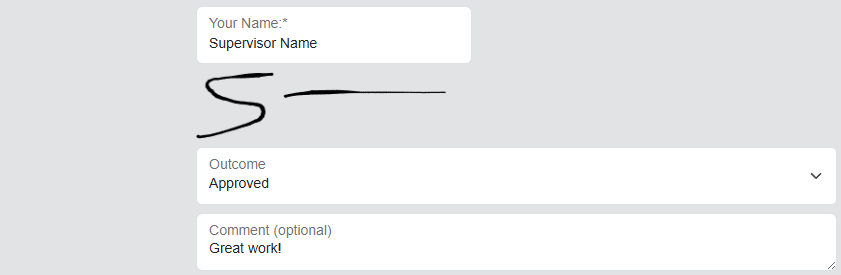
You can always update your signature with ‘Sign now’ and override the signature securely stored in your company profile.
We hope this helps speed up your eJournal workflows!
Applies to: Apprentices
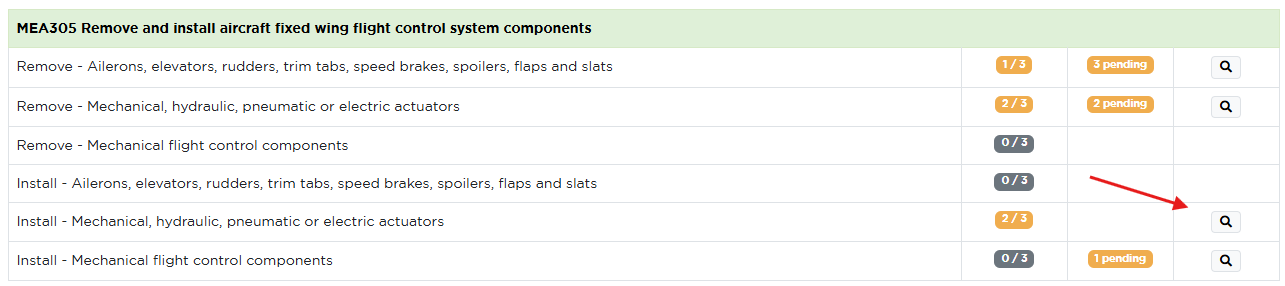
A pending entries indication has been added to the apprentice entry page. Apprentices can now see how many entries they’ve already submitted and are awaiting approval.

Reminder that you only need 3 valid entries per system, so “2 pending” means you would only need to submit one more, and wait for each entry to be signed and approved.
Applies to: Apprentices
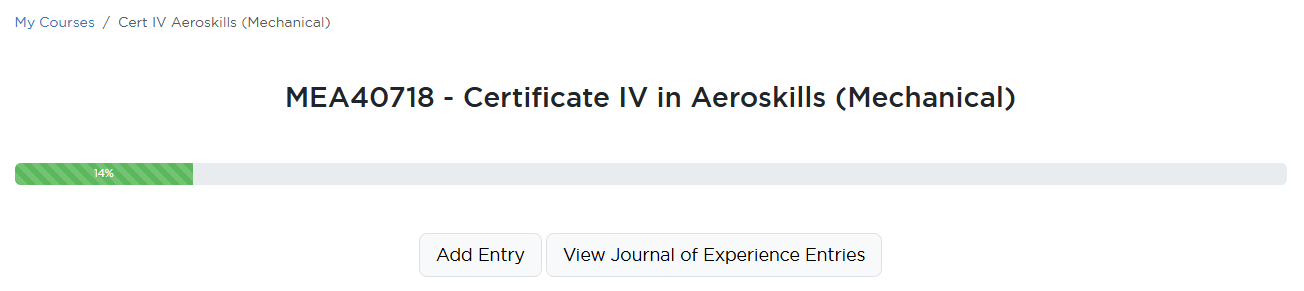
You can see an overall progress bar to indicate your qualification progress in the eJournal.

Applies to: Apprentices
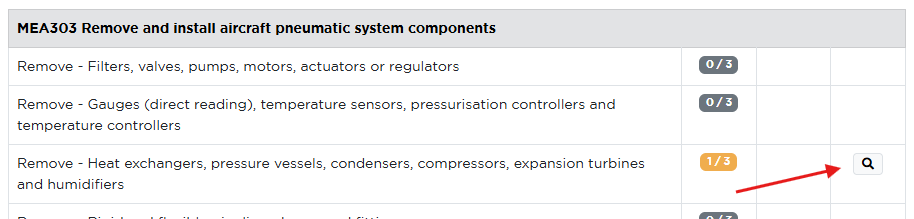
From the journal summary page, you can view all of the entries that you’ve made against each ROV via the magnifying glass button. This will show you both pending and approved entries made in a pop-up window.

Applies to: Apprentices
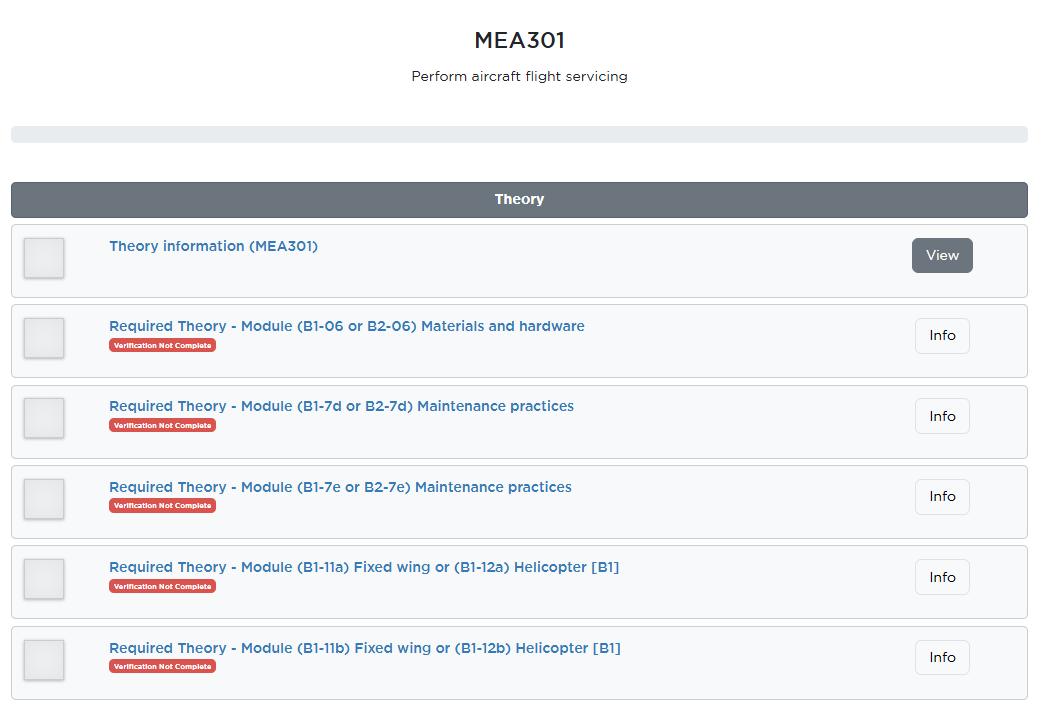
When you are on your My Courses page, you will see your units progression and associated tasks. A unit will show as ‘In-progress’ or ‘Done’. This area of the application is separate to your journal entries and aims to show you what’s been marked as completed within your qualification.
Your core and elective units will look slightly different.
When you open up an elective, you will see the following tasks:
A core unit may show other tasks such as:
To check out these updates, log in to the application.
If you are have any trouble or need assistance you can contact [email protected] or use the Aviation Australia apprentice support email.
Applies to: All users
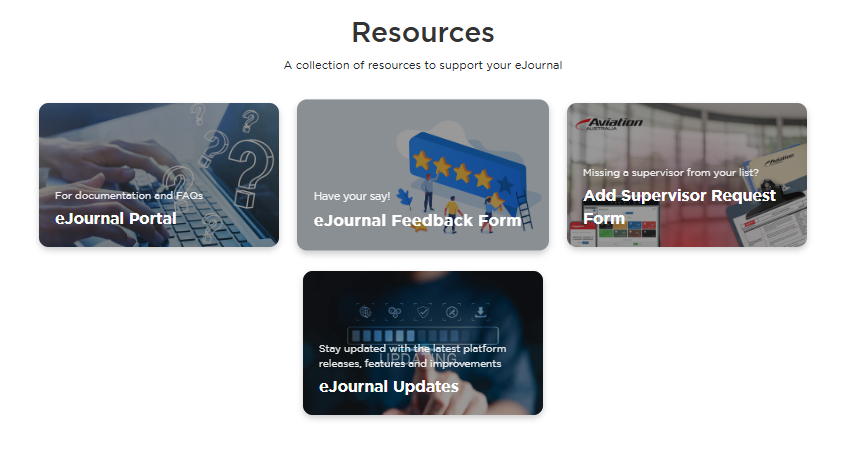
Once logged in, you will see a ‘Resources’ tab at the top right of your application.
This new resources area provides quick links to some important pages and forms:
More resources may be added to this page in the future to help you with your training.
Applies to: Apprentices
Applies to: All users
As more and more of the industry moved to the digital journal, we were focused on making sure all of the core functionality that apprentices, supervisors and employers need from an eJournal platform were there.
This included:
Thank you for your support as we launched the electronic journal for your aircraft maintenance engineering apprenticeship.
Aviation Australia’s eJournal launched in late 2024 and has been available throughout 2025.
From this year and onwards all new apprentices will be issued electronic journals to track their on-the-job training.


Aviation Australia is committed to continuously improving the platform to ensure that you can focus on your training and leave the paperwork to us! If you’d like to be on the platform, and your employer works with Aviation Australia please check out the details on the portal page linked below.